•           Home
  • Getting Started
  • Working at Home
  • Productivity
  • Grammar & Spelling
  • Research
  • Text Expanders
  • Earnings Calls
  • Product Reviews
  • Podcasts
  • About

Friday, October 3, 2008

An Intro to Earphones, Earbuds and Canalphones

To be honest, I've been attempting to write this post for MONTHS now, but it originally started as a headphone AND earphone intro, and there are so many variations and styles that I couldn't get it organized into anything evenly remotely concise. I'm not sure why it took me so long to realize that I didn't have to cover them all in one post!

Anyway, Tara and I have both prefered earphones up to this point, but as Shaina has shared before, she prefers her Bose Around-Ear Triport Headphones. Tara's considering these for her next set as well.

However, deciding between headphones and earphones is just the tip of the iceberg.

Earphones come with two different types of earpieces: earbuds or canalphones. Earbuds are placed inside the ear but outside of the ear canal and therefore do not provide much sound isolation. On the other hand, canalphones act as earplugs as well, creating a seal in your ear to provide some sound isolation. Most canalphone-style earphones come with several sizes of stock sleeves to help you find the best fit. There are some with double and triple flanges as well, which provide even more noise isolation. You can also have custom canalphones made that fit your ear, but with the number of times my children have removed – and even lost (or in the case of Tara's daughter, eaten) – the sleeves, this is not something I see myself spending money on anytime soon.

Another style difference among earphones is whether you simply insert them in your ear or if they have an earclip that goes around your ear to provide additional support. I used earphones with earclips for a long time but have recently switched to the kind without, and I actually prefer them because it's that much easier for me to get situated when I sit down to transcribe.

I'm currently using Koss KEB24 earphones, and I really like them, except for the fact that the earphone plug is straight, and because my jack is on the front of my computer, I've had to replace them twice (within the return period at Wal-Mart, thankfully) because it's gotten worn out or broken. Next time, I'm going for a plug that has a right angle in it to prevent this problem.

Amazon is a great place to search for a variety of earphones because you can read the reviews of other users as you make your decision.

Do you use earphones rather than headphones? What style or brand do you have? Do you like them? If you'd like to write a product review, let us know by emailing us at transcriptiontalk -at- gmail -dot- com.


Monday, September 22, 2008

Getting Started – Configuring Your Pedal with Express Scribe

As Tara mentioned in her post about the basics needed to get started as a general transcriptionist, Express Scribe is our audio player of choice because it's free, but it's also the one we all use, even though we have other software, because of it's functionality as well.

After last week's poll on using a pedal, I thought this would be a good time to talk about setting up your pedal and customizing your setiings. If you're using a pedal, such as the Infinity IN-USB-1 (which is not necessary when you're first practicing but does help with productivity once you get going), you can follow the directions provided on the Express Scribe site to set up your pedal.

There are a few settings you'll want to look at and adjust for your preferences. For example, on the Foot Pedal Control screen (under Settings), there is a check box for "Quick tap on play pedal locks play on." I prefer to push the pedal to play and let go when I want to stop rather than tapping it on and off. However, I am admittedly not the fastest typist, and you may find that it works better for you if you're faster.


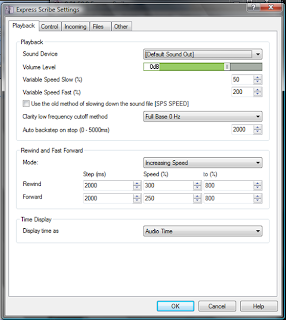
There are a few other settings on the Playback screen (also under Settings) that you'll want to adjust whether you're using a pedal or the hotkeys to control your audio. As you can see below, I've set my "Auto backstep on stop" to 2000ms. This is about 2 seconds, so when I let go of the pedal, the audio steps back approximately 2 seconds for when I'm ready to start playing again. In my opinion, this is the most important of the settings, and so far 2000ms works for all three of us. On the other hand, I haven't been able to find rewind and fast-forward settings that I'm entirely happy with, so I recommend you play around with those until you find what works for you.


Sunday, September 21, 2008

Poll Results – Do You Use a Pedal?


It was great to hear from you all in this week's poll about who uses a pedal. It looks like most of you started out using one and still use one today. The answer I found most interesting was the three of you who started out using one but no longer do. We'd love to hear why you switched to using hotkeys!

If you're still trying to decide whether to purchase a pedal or not and are working regularly as a transcriptionist, we encourage you to make the investment. All three of us used the hotkeys when we started transcribing, and we were all hesitant to invest in a pedal because we felt like we had mastered the hotkeys and it would not be worth the learning curve. However, there is no doubt that using a pedal is an easy skill to pick up and will undoubtedly increase your transcription speed. There are many reputable sellers selling new pedals (the Infinity IN-USB-1 is our pedal of choice) on eBay, which is where I bought my last pedal from.

If you're just getting started, it's okay to just use the hotkeys while you gain experience and make the decision as to whether this is a career you want to pursue. But once you begin working regularly, be sure to make the switch because you'll find that it enables you to work smarter and faster and therefore earn more.


Sunday, September 14, 2008

Lessons Learned the Hard Way


If you use a computer for business purposes, I cannot stress how incredibly important it is to back up your information on a regular basis. There are some great online programs that run in the background on your computer, some free, some for a small fee. I use the free version of Mozy which will back up 2GB for free. However, if you need additional storage capacity, you can pay $4.95 monthly for unlimited storage. Other online backup services are Xdrive and Carbonite, or you could also buy an external drive to backup your data to.

Whatever method you choose, make absolutely sure that every important file you need is being backed up. Do not assume that simply because it shows that it's backing up a particular folder that the entire contents of that folder and being saved.

I learned this lesson the hard way today when I somehow deleted my ShortKeys file. Don't ask me how I managed to do this, because I'm still not even sure. I thought I was safe because I have my files backed up nightly, but even though the folder that my file was saved in was being backed up, my actual ShortKeys file was not checked. That's over three years' worth of shortcuts I had entered that are now gone, gone, gone.

Thankfully I'm very lucky that Shaina and Mandi and I have all shared our lists from time to time because we use many similar shortcuts, so I'm sure with their help I can recreate it to some extent. But it's still not MY list, and it will take some time to build it back up to where it was. Just typing this short post has been extremely difficult for me, because they're so ingrained in my memory that I automatically type my shortcuts.

I hope that by posting this I can help at least one of our readers avoid a similar fate!

Wednesday, September 10, 2008

Guest Post: The Maltron Keyboard

One of our readers, Joe, was gracious enough to provide this post on the Maltron keyboard and differences the layout has from the QWERTY most of us are used to. While the investment and learning curve may not be practical for most of us, the information is very interesting.

One thing I found particularly interesting on the Maltron site was the large selection of keyboards for people with disabilities, including the single-finger or head/mouth stick keyboard. I used to work with people with disabilities helping them develop computer skills with limited motor function, and I was extremely interested in these for that reason.


-----------------------------------

One of the problems that VERY few "ergonomic" keyboards address is the actual key "distribution". Without going into the reasons for creating the QWERTY layout, it is dreadfully inefficient and creates so many problems.

I've been using a Maltron keyboard since 1986, using the Malt letter distribution and although I started typing in 1967, and was able to do better than 65 wpm, I moved from 0 to 15 wpm touch typing within 6 weeks, but didn't lose my QWERTY facility. This is because the Malt layout is so logical it is very easy to learn. I'm now able to work at between 50-180 wpm, and average about 23 wpm over 8 hours (including coffee breaks, lunch, answering the phone, proof reading etc).

If I'm forced to I can still touchtype with the old keyboard 20 something years later, because the Maltron didn't REPLACE the QWERTY, it was separate, but parallel to it. The Maltron FEELS so different there's no confusion between the two. However, using the QWERTY is hard, painful work.

(See how many "useful" words you can type with your current keyboard layout without moving your hands from the home key position.)

To give but one brief example of the inefficiency of QWERTY as opposed to Maltron, if the typist keeps the fingers on the home keys (including the thumbs) using QWERTY roughly 195 words can be typed, whereas with the Maltron layout more than 7600 words can be typed.

Further, many keyboards STILL have the "staggered column layout" even though the necessity for this disappeared with invention of electric typewriters. The staggering creates thousands of completely unnecessary side-to-side microshifts of hands and fingers.

As far as cost goes, I'm still using the SAME keyboard I bought in 1986, although I had to have the internals replaced and extra keys added when I moved from Apple II to IBM in the late '80s. I've never had any sort of failure, so although it was expensive to purchase initially, when amortised over the whole life of the keyboard it's probably cost me about $20-30 (Australian) per year.

Joe Blake has been a word processing operator since 1980, becoming a court reporter in 1990. He currently works out of his home in Australia doing private transcription work, primarily oral history reviews.

Thursday, August 28, 2008

Guest Post: Why I Love My Ergo Keyboard

As promised, we will be hearing from others why they love the keyboards they do. Our first contributor on the topic comes from Jessalee Kube.

----------------------------------

I have been an ergonomic keyboard convert for close to ten years now, using some iteration of this style since that time and transitioning to Microsoft's Natural Ergonomic Keyboard 4000 following its release in late 2005.

I am unabashedly devoted to the split-key style this model features, mostly because it was designed with the touch typist in mind. The curved key bed offers the user a 12-degree angle that supports a more comfortable, natural position for your hands, wrists and forearms. Additionally, the slope and placement of the keys lessens the distance your fingers travel to strike neighboring keys from the traditional home position. Less distance means you cut down on the repetitive motions that can result in injury and strain.

To further sweeten the pot, this model also sports an integrated palm rest, a conveniently placed zoom button, customizable multimedia buttons and application launching all with the click of a button. Who says ergonomics can't be sexy?

Of course, with the sweet must come the sour, and there are several common complaints about this model. One is the white lettering on black keys rubs off quickly. Not only that but the large space bar has a tendency to stick or become difficult to strike over time. In fact, after an extended period of usage, the feedback you feel from all of the keys can make the keyboard noisier and/or more difficult to strike. This can be especially troublesome if it affects your productivity and TATs.

Regrettably, I have had to replace this keyboard twice due to water spills. After following the steps outlined by the collective voice of the internet in an attempt to salvage them, I still had to make the frantic dash to the nearest office supply store for a replacement. Fortunately, the second time this happened I wised up enough to take advantage of their three-year warranty. Microsoft mailed me a replacement keyboard promptly, and said keyboard is now happily sandwiched next to my backup headphones in the bottom of closet, awaiting the next impending, inevitable liquid mishap.

Just a note for the Logitech lovers. I will shamelessly admit that I have had my eye on their Cordless Desktop Comfort Laser Keyboard that is not only a split-key design but cordless. And while Microsoft makes a cordless version of this design, the Microsoft Natural Ergonomic 7000, I have heard rave reviews about the Logitech model and can foresee my probable transition to Logitech based on personal brand preference.

Jessalee has been transcribing off and on for ten years and full time for four of those years. Once of Adventures in Baby Fat, she now blogs at Why, Moxie?, telling it like it is one exaggeration at a time. She is also the owner of Transcription Essentials and mom to two wonderful children, Andy and Bizz. She enjoys spending time with her family, reading, swimming, embroidery and watching movies with her husband, whom she lovingly refers to as Darth. In her own words, her favorite part of the transcription industry is "learning something new each and every day."

If you're interested in contributing a guest post about your keyboard, please contact us at transcriptiontalk (at) yourvirtualdesk (dot) com. We're also open to any transcription-related topics!

Tuesday, August 26, 2008

Choosing the Right Keyboard

There are many different kinds of keyboards out there. Choosing one that works for you is sometimes a matter of personal preference or could also be driven by sore wrists or an effort to avoid sore wrists. Whatever your reasons, it's important to know all the options.


First there is your standard fat and straight keyboard. This may be what most people are initially comfortable with because most of us learned to type on one of these or on a typewriter. ("Find your home row, everyone.") Perhaps you find this most comfortable, or perhaps you work off a laptop keyboard, making this your only option. It's definitely an option that several people choose as their personal preference.


Next in line come keyboards that have a slight curve to them. The Microsoft Laser Desktop 6000 is one of these. It curves the keys on either side up as if they were starting to split towards a full standard ergonomic keyboard model. This is the kind of keyboard I use, and I've found that it is quite comfortable. However, when people sit down at my computer to type they often stare at the keyboard for a few minutes trying to figure out why it looks different. Logitech also offers a curved variety of keyboard, but they also include a curve in a different way. The keyboard keys have a wave-like appearance if viewed from the side. These keyboards are designed to start you off in a "more ergonomically correct" position.


Next there is what is known as an ergonomic keyboard. Ergonomic keyboards come in a variety of different shapes and styles, but they are generally split and tilted up at the center. They are designed to promote ergonomically superior typing position that will minimize strain and pain on your wrists and other muscles. This is often a keyboard that people in professions such as transcription fall into because of the comfort level it provides. However, changing from a straight to an ergonomic keyboard can be a little clumsy. I've heard that if you just stick with it you'll be comfortable and never turning back in no time.


Finally, the Safetype keyboard and other models like it claim to be the utmost in ergonomic correctness. According to their website, the Safetype keyboard "eliminates the 3 most damaging positions: extension, deviation and pronation." While I find this keyboard intimidating, I'd love to give it a try and see how it works.

Later this week we'll see what other people think of their keyboards and why they chose what they did.

Saturday, August 23, 2008

Product Review – Microsoft Wireless Desktop 6000 v2 and the Logitech Cordless Wave

I was going to Amazon to buy an extra keyboard this week for backup and found that my favorite keyboard of all time is on sale for an incredible price. Therefore, I am inclined to tell you of my love for said keyboard.

When I first set out to choose a keyboard I looked into all the different options. However, I was never comfortable on a split ergonomic model and generally played around with the regular, straight variety. Then I found this while shopping at Costco one day.


The Microsoft Wireless Laser Desktop 6000 v2 has a Comfort Curve keyboard that, according to the product description, "encourages natural hand and wrist positioning." In fact, I have noticed that my wrists started to feel significantly better when I switched from a straight version to the curved. However, I do have an issue with not wanting anything but this keyboard now because I am so used to the curved feature.

The keyboard is relatively quiet, and I like the touch of the keys. When I have my headphones on I can barely hear the keys if I don't have audio playing, and I don't notice the typing sound if I am working and have audio going.

Some of the other benefits of the desktop package are found in the laser mouse. The mouse has several functions and can be set up to control the speed at which it scrolls. I also find the form-fitting design to be extremely comfortable. The page selection feature is nice too. You just click one of the side buttons and you get tiny windows of all the open pages you have in your start bar. You can just click on the one you want to bring that one to the front. I find it useful when I'm working on earnings calls and have several different pages open at once.

I did have to exchange one of these because when I went to change the batteries (after about three months of solid use) the keyboard stopped responding. However, I had absolutely no problem getting a replacement, and it didn't cost me a dime. This is also why I keep a backup keyboard around just in case.


Logitech came out with a similar design in the Cordless Desktop® Wave. This keyboard features a curved design (Constant Curve) and also includes a wave on the keyboard surface that "cradles your hand naturally." The package features many of the same benefits of the Microsoft keyboard for about the same price. I find the Logitech to be even quieter than the Microsoft and possibly a little more reliable. I have only had the Logitech for three months, but I have been thrilled with its performance thus far.

The drawback of the Logitech is that I did not find the mouse to be nearly as comfortable or as nice as the one included in the Microsoft 6000. However, while writing this post I went to the Logitech website and saw they have a Cordless Desktop® Wave Pro™ now available with an updated mouse and keyboard design (and a higher price tag, of course). I may need to seek this one out to buy too when it becomes available.

Look for a post this coming week on different styles of keyboards and why you use what you use. Additionally, if you are interested in telling us why you use what you do, feel free to contact me to be published here by leaving a comment with your email information or through email at solmanson at yourvirtualdesk dot com.


Friday, August 8, 2008

Product Review: LG L227WTG 22" Widescreen LCD Monitor


About seven months ago I decided it was time to upgrade to a real monitor, a big monitor. I went big for a few reasons, one of them being how much space I'd have to put stuff on my screen and not having to flip back and forth between windows. After a lot of discussion and research I decided on a 22" widescreen LG monitor from Best Buy.

There are a few things about my monitor that I appreciate. The first is the 2ms response time. I have never noticed a delay caused by my monitor when I was typing, and this was a huge consideration for me. Delays are not good when transcribing, and I need my equipment to be able to keep up and not slow me down.

I've also found the brightness and contrast ration to be more than adequate, and watching videos and movies on my monitor is very easy on the eyes. Considering I spend a long time each day watching the screen, the comfort level was also a very important factor. I've never had a problem with dead pixels at this point, and my monitor runs probably 15 to 18 hours a day on average. I do use the energy saving feature to have it go into power saving mode when it has been idle for a longer period of time.

You can read what other people thought of the monitor here, and for the most part, people have had nothing but positive things to say. If you are in the market for a new monitor I'd highly suggest the larger size. I can have a full page of my Microsoft Word document open next to ES and still see over half of my browser screen, which is set to open at around a 12"x8" screen I've found that being able to open multiple search tabs and actually view them has helped when working on research-heavy files, and the extra room has also increased my productivity by saving time flipping between as many open program windows.

Amazon has the exact LG L227WTG 22" Widescreen LCD Monitor for sale, and they also have a few comparable models. Additionally, Best Buy often offers sales on monitors where you can save a significant amount. Best Buy Rewards is a wonderful program as well, and I've loved using my points and rewards towards the purchase of other computer-related items I need for work.


Wednesday, July 23, 2008

Product Review – HP Pavilion dv6700

As I mentioned, my old laptop had to be replaced a couple of weeks ago because of an increasing number of problems, which I’m afraid are an indication of the hard drive going out, but we’ll see if getting everything off of it and reformatting it salvages it as a spare computer. Thankfully, I had ordered a new computer before the problems intensified to the point of not being able to work on it anymore, and so I was only left without a computer for a couple of days.

I settled on an HP Pavilion dv6700 with a few minor upgrades, and I have to say I absolutely love it. If you’re in the market for a new computer, I can wholeheartedly recommend this one. While I don’t think the technical specifics are anything spectacular, here are a few of my favorite features:

*The finish of the laptop is HP’s Imprint technology, which is actually a “high-gloss coating with a unique, inlaid design” rather than a painted surface. Although the glossy finish does mean that I am constantly cleaning fingerprints off, the finish will not wear off as it did on my Dell, and I’m hopeful that it will stay nicer looking for longer.

*Although I downgraded to a 15.4” widescreen from a 17” widescreen, the HP screen is a high-definition BrightView screen. It is amazingly clear and crisp and easy on the eyes.

*VISTA!!! I was so nervous about this upgrade, but I love Vista. I have not had any issues at all with it, and I love the desktop features. It’s so pretty. I’m still figuring out how the file organization and everything works, but so far I like what I see.

Anyone else have one of these? Do you have a computer that you love and would recommend to others?

Tuesday, July 22, 2008

The Importance of Spares and Knowing Your Weaknesses

Raise your hands if you're prepared in the event that your headphones or pedal should suddenly stop working properly. Anyone? Anyone? I'm sure there's a few of you out there, maybe more than a few, but I'm willing to bet that there are a large number who are not. Don't be embarrassed -- you can count me among those who are not, so you're not alone.

You'd think I'd have learned my lesson by now. I've been lucky as far as pedals go, but headphones don't last so long around here, not with the kids yanking on them and toddlers eating the silicon ear buds. Yep, you read that right! Last year my then one-year-old DD popped them in her mouth and it was several days before I saw them again. Of course, they were immediately relegated to the trash.

I experienced this again last week when the right side of my headphones shorted out. Luckily I did have a spare this time, my iPod ear buds, but I'm not very fond of them. They hurt my ears and make transcribing for any length of time very uncomfortable.

So why don't I have a spare set of my preferred headphones or a spare pedal? Honestly, I don't have a good answer. Excuses yes; answers, not so much. I mean certainly the time wasted in lost productivity and the aggravation are not worth it.

After kicking myself for not being proactive in this area, knowing how important it is and how easily I could have avoided the situation, I started thinking about what other areas I need to improve in. I came up with three areas to work on over the next few months. First of all, when I replace my headphones, I'm going to purchase two sets this time so I always have a backup available, because I know I'm going to need them eventually. I mean, with five kids, it's only a matter of time!

Secondly, I can't remember the last time I've cleaned up my text expanders. I have tons of shortcuts from a radio show that I used to transcribe regularly that I can put into a separate file, because I only need them for when I'm filling in these days. Plus, there's a lot of expanders that maybe I added for a single file and then never deleted, and I'd also like to implement some of the suggestions from Mandi and Shaina's text expander lists that I don't use currently.

The final area that I'd like to improve is my knowledge of Microsoft Word shorcuts. I know that I could greatly improve my productivity by becoming more familiar with the various keyboard shortcuts, yet I've never made a conscious effort to force myself to use them consistently. I'm looking forward to starting a series to focus on this aspect later this week.

So how about you -- what areas do you feel that you need improvement in?

Friday, July 18, 2008

Hot Deal on Toshiba Laptop at Wal-Mart Sunday

I ran across this when I was doing research for my other blog. I thought it might be useful for someone here that's in the market for a new laptop. Wal-Mart is going to have a Toshiba laptop with:

  • 2GB of RAM
  • 120GB hard drive
  • CD-DVD-RW
  • 15.4" screen
  • wireless capability
  • Windows Vista Premium Operating System

All of this for $398!!! I don't have a model number yet, but I'll update this with one when I get it. This is going to be on the front cover of the Wal-Mart ad Sunday. They say they've purchased a large quantity, but it also states that supplies are limited. They're available starting Sunday at 8:00 a.m., so if you're interested I wouldn't wait!

UPDATE - The model number is A205-S5000, and the ad states that they will have a minimum of 10 per store. This offer will not be available online.

Wednesday, July 16, 2008

Getting Started – Hardware Needed, Part 1

I had to replace my laptop this week because my old one is having an increasing number of issues that culminated with it shutting down on me six times in an hour while I was trying to meet a deadline last Thursday. While one of the benefits of transcription is the low cost to get started initially – if you’re surfing the Internet and able to run basic programs on your computer, chances are you’ll be able to transcribe – you may find that some upgrades are worth the additional cost when buying a new system.

I’m not a computer expert by any means, but I have a couple friends who are and who recommended HP laptops as a less expensive alternative to Sony Vaios, which I was initially looking at. All I knew was that I did not want a Dell this time around. I’ve been very happy with my eight-year-old Dell Optiplex desktop, which still serves as my backup computer, but my experiences with their laptops have not been as positive.

As I was ordering my new one, I based my decision on each feature on my previous experience, trying to weigh the benefits and cost of each one so that I wasn’t spending money unnecessarily without giving up important upgrades just for the sake of being cheap.

Here’s what I ended up with:

Windows Vista Home Premium – My friends, who work for Microsoft but are always honest with me when I ask for their advice, assure me that Service Pack 1 has fixed any of the existing issues with Vista but that they haven’t had any major issues in the year they’ve been running it anyway. While I’ll admit I’ve been afraid of Vista (I bought my first laptop with Windows Me on it however many years ago, and that was pretty much the worst experience ever, so I was hesitant to go with a new operating system when Vista came out), that's good enough for me, especially considering I didn’t have much choice left at this point!

Intel(R) Core(TM) 2 Duo Processor T5750 (2.0GHz) – Okay, here’s where I admit I really don’t know much about processors and gigahertz and all of that. I do know that the processor determines the speed that my computer is able to complete a given task, and a few Google searches seemed to indicate that a dual processor would provide all of the speed I would need. Since this is an upgrade from a slower single processor for me, I'm not expecting any issues.

15.4" diagonal WXGA High-Definition HP BrightView Widescreen Display (1280 x 800) – This is actually a downgrade for me, as I’ve loved having a 17” widescreen for the past 2.5 years. But the price between the two sizes is farily significant, and I’m actually looking forward to having a smaller, lighter computer at this point.

If I were purchasing a desktop or separate monitor, I would definitely go with the biggest screen in my budget. The flat-panel LCD monitors that are available save a ton of space compared with a classic CRT monitor, and I really do like having a larger screen so that I can have multiple windows up at once.

FREE Upgrade to 2GB DDR2 System Memory (2 Dimm) – This is double the memory I currently have, and I learned an important lesson while researching laptops. You can purchase memory much, much cheaper from reputable Internet sites than from the manufacturer, and the installation is a fairly simple process if you're at all comfortable with the workings of your computer. You do need to make sure you know how many slots are available as you decide which memory to purchase. For example, a laptop may have two slots with two 1 GB cards. If I buy a third 1 GB card, it won't do me any good. I would need to replace one or both of them with a 2 GB card to increase my memory. A Google search with your model name/number and "RAM" should give you all of the information you need to get started.

FREE Upgrade to 160GB 5400RPM SATA Hard Drive from 120GB 5400RPM SATA Hard Drive – A 160GB hard drive is double my current size, and since I'll no longer be storing all of my pictures on my computer, I'm confident it's enough. I probably would have even settled for the 120GB had it not been for the free upgrade.

An important sidenote: RAM refers to the temporary storage on your computer and affects your computer's performance because it stores information for programs that are currently running on your computer. However, pictures and files are stored on the hard drive, not in the RAM, and so if you have a lot of large files (and by this I mean thousands and thousands of pictures or hundreds of large audio files, which you should not be storing long term under most confidentiality agreements anyway), you'll want to upgrade your hard drive size as well.

When buying a new computer, it's always tempting to upgrade to the best of the best for each feature. However, this is my third laptop since I began transcribing because I work the poor things to death, and while I'm hopeful I might be able to make it last a little longer than my two Dell's, I find that the better option for me is to just get a good solid computer and plan on upgrading down the road. With the way prices drop by several hundred dollars every couple of years (even when upgrading to a better system), this just makes sense for me.

Any computer experts have anything to add?

Saturday, June 14, 2008

Product Review: Belkin Laptop Cooling Stand


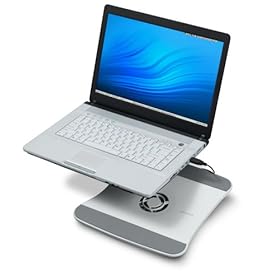
I love the flexibility that transcribing on a laptop allows me because I can move around the house with the kids or even transcribe in the car on occasion. However, I don't love the fact that it burns the heck out of my legs when I use it for long periods of time. I literally have a red blotch on my right thigh from the excessive heat that it gives off.

So I was very intrigued when I ran across this Belkin laptop cooling stand one day, so much so that I decided to purchase and give it a try. I'm happy to report that it really does what they claim! It very effectively cools off my computer, is comfortable to use, and doesn't draw a huge amount of power to keep it running.

It was ready to go right out of the box. I just plugged it into one of the USB ports, and that was it. Just one fan does the trick, and it runs very quietly. I'd definitely recommend to anyone working on a laptop.

Sunday, May 11, 2008

Product Review: Bose TriPort Around-Ear Headphones


I purchased these headphones about 15 months ago to replace my Sony MDR7502 Stereo Headphones that I'd had for the previous 8 months. One of the main reasons I was in the market for a new pair was how uncomfortable the Sony headphones were after a day of work. I felt like they squished the top of my head, and the ear design sat on top of my earrings, making them uncomfortable there as well.

I walked out of Best Buy with my Bose TriPorts and haven't looked back since. There are several things I like about them. First, the around-ear design is comfortable for several hours of work. As a bonus, it also cuts out background noise, so you get a noise-cancelling feature without spending the extra cash for it. The padding on the head bar and its thinness also make them the most comfortable pair I've owned. I rarely adjust them once I start working, and to me, that is important because it allows me to work comfortably for longer stretches of time.

I've also found them to be quite durable, as they have taken a beating and have never shown any signs of wear. They have been dropped, yanked out of the computer forcibly, tripped over, stepped on and traveled with me in their cloth carrying case in both checked luggage and in my carry-on. Still, these headphones look and sound like they did the day I purchased them.

My favorite part is definitely the sound quality. I've found that I can hear challenging audio more clearly with the TriPorts. Some reviews have talked about the bass and the lows not being as clear as they would like, but I haven't run into a problem in that area with transcription. I found this review from Reviews by Digital Trends to be quite accurate in describing the sound.

The overall design of the headphones is very ergonomic but not revolutionary, in fact, it's quite simple... but attractive; however, the TriPort's employ design features designed to improve your listening experience. For starters, these headphones are designed to direct sound into your ears instead of onto your ears (given they are worn correctly). The three drivers inside of the headphones are angled to align with your ears providing more natural sound delivery. This isn't typical of most over-the-ear headphones. In addition, the cushioning on each ear cup encircles your entire ear providing great insulation from exterior sounds even without active noise reduction.

Overall, I have found that my TriPorts have been worth every penny and then some. When they eventually do get out or I decide to get a backup pair of headphones I will be looking for another pair of the Around-ear TriPorts…unless I decide to go with the Bose TriPort In-Ear Headphones or upgrade and spring for the Bose® QuietComfort® 2 Acoustic Noise Cancelling® Headphones. What can I say? I've been converted to a Bose customer.